


1. Introduction: Why Visual Paradigm for Gantt Chat?
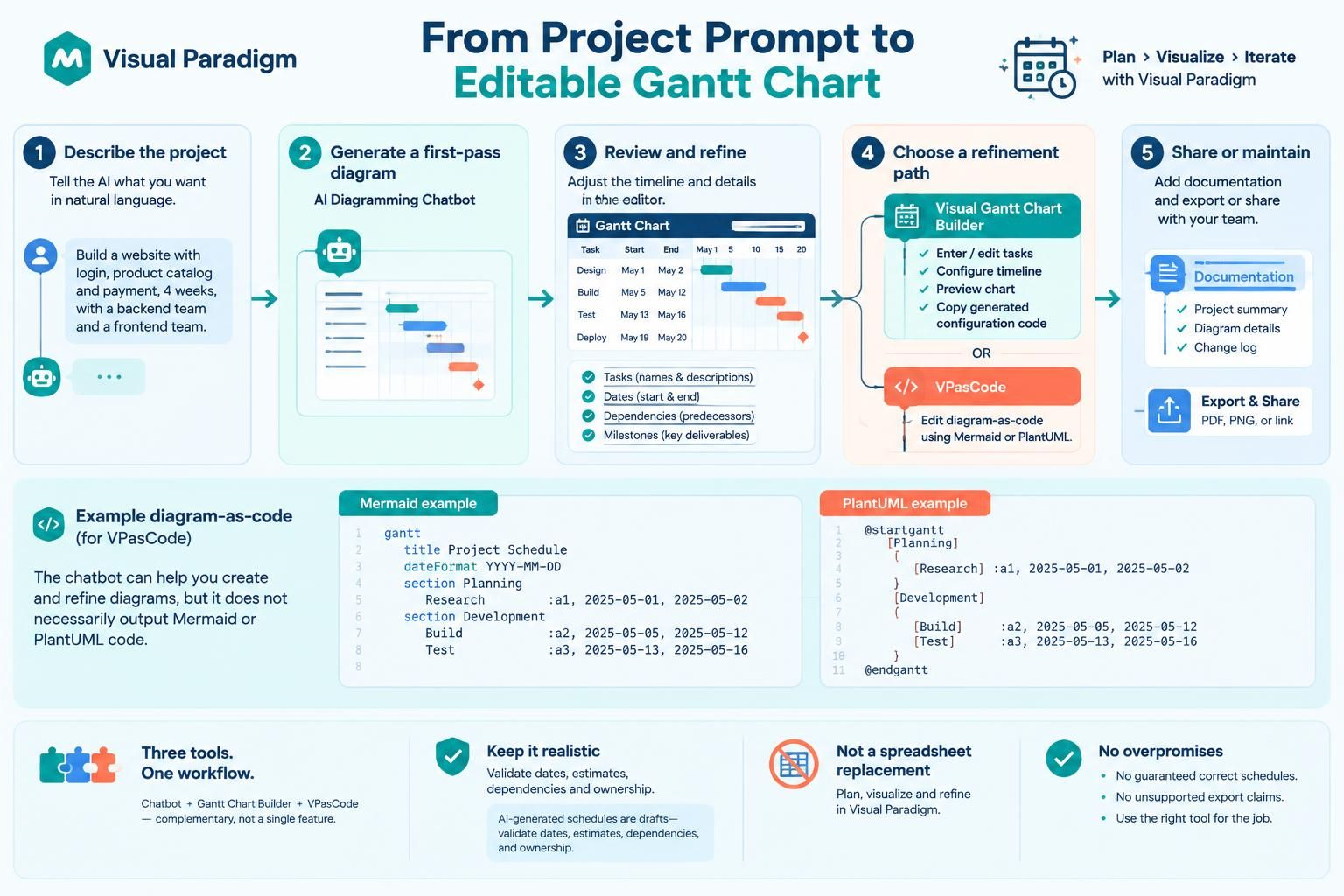
Project scheduling has traditionally required users to manually drag bars, calculate dates, and wrestle with spreadsheet formatting. Visual Paradigm’s Gantt Chat changes that paradigm by combining natural-language AI with the rigor of diagram-as-code. Instead of starting from a blank canvas, you describe your project in plain language, and the system generates a structured, editable Gantt chart. What sets Visual Paradigm apart is its foundation in text-based diagram syntax: the AI doesn’t just produce an image you cannot easily modify; it generates code in formats like Mermaid or PlantUML that you can refine, version, and embed in documentation . This guide walks through the entire workflow, from prompting to export, with practical code examples you can adapt immediately.
2. What Is Gantt Chat?
Gantt Chat is a conversational interface for creating and editing Gantt charts. You type a description of your project—phases, tasks, deadlines, dependencies—and the AI drafts a complete schedule with task names, durations, start dates, and logical sequencing. The output is rendered visually as a Gantt chart, but underneath it is represented as structured text code. Visual Paradigm’s ecosystem connects this chatbot to VPasCode, a browser-based editor that supports both Mermaid and PlantUML syntax. This means you can move seamlessly from an AI-generated first draft to precise, code-level edits without ever leaving the workflow . Gantt Chat is not merely a chart generator; it is an entry point into a version-controllable, documentation-ready project planning pipeline.
3. Benefits of Using Visual Paradigm for Gantt Chat
Faster Gantt chart creation through natural-language chat
Manual chart creation requires deciding on task granularity, assigning dates, and drawing dependencies before you can even see whether the schedule makes sense. Gantt Chat reverses this: you describe the project outcome and phases, and the AI produces a complete draft in seconds. This eliminates the “blank page problem” and lets you spend your time refining rather than constructing .
Easier project planning and schedule updates
Once a chart exists, updating it is often more tedious than creating it. With Gantt Chat, adjustments happen through conversational prompts. You can ask the AI to shift all dependent tasks when a milestone moves, rename phases, or recalculate durations. The visual chart updates in real time, and the underlying code reflects the change immediately . This makes iterative planning practical rather than painful.
Improved collaboration and accessibility
Because the generated charts are stored as text code (Mermaid or PlantUML), they can be committed to version control, reviewed in pull requests, and embedded in Markdown documentation. Team members who prefer code can edit the source; those who prefer visuals can view the rendered chart. Visual Paradigm further supports publishing to OpenDocs, where the live Gantt chart and narrative project reports can coexist on a single page . This bridges technical and non-technical stakeholders without forcing everyone into the same interface.
Reduced effort compared with manual chart editing
The AI handles the mechanical work: calculating end dates from durations, enforcing dependency chains, and laying out the timeline. You supply the judgment—whether a task estimate is realistic, whether a dependency is truly mandatory, whether a milestone is placed correctly. The division of labor is efficient: machine for structure, human for accuracy .
4. Standout Features
AI-assisted task and timeline generation
The AI parses your project description and infers a work breakdown structure. It assigns plausible durations and start dates, and it identifies dependencies between tasks based on the logical flow you describe. For example, if you mention that testing follows development, the AI will link those tasks so that testing cannot begin until development finishes .
Editing charts through conversational prompts
After the initial draft, you can refine the schedule without touching code. Prompts like “make the design phase two weeks longer” or “add a milestone for stakeholder review after the prototype” are translated into precise modifications to the underlying diagram code. The visual chart and the code stay synchronized .
Task dependencies, milestones, and durations
Gantt Chat supports the core constructs of professional scheduling: sequential dependencies (finish-to-start relationships), milestone markers (zero-duration checkpoints), and explicit durations in days or weeks. In the generated code, these appear as readable statements—for instance, PlantUML’s [Task B] starts at [Task A]'s end or Mermaid’s after keyword .
Visual customization and export options
While the AI generates a functional chart, VPasCode allows styling adjustments: task colors, closed days (weekends and holidays), and timeline scale (daily, weekly, or monthly). Completed diagrams can be exported as images or embedded into documentation. The exact export options depend on your workspace configuration .
Sharing and collaboration workflows
Visual Paradigm connects Gantt Chat to OpenDocs, its documentation platform. After refining a schedule, you can publish the live chart alongside an AI-generated Markdown report summarizing phases, responsibilities, and milestones. This creates a single source of truth that combines visual timeline and written context .
5. Creating a Gantt Chart with Gantt Chat
Describing a project in a prompt
The quality of the AI’s output depends heavily on the specificity of your initial prompt. A strong prompt includes four elements: the project goal, known phases or deliverables, timeline constraints (total duration or key deadlines), and any logical sequences you already know. For example: “Create a Gantt chart for a mobile app launch. Phases: Discovery (2 weeks), Design (3 weeks), Development (6 weeks), QA (2 weeks), Launch (1 week). Design must finish before development starts. QA depends on development completion. Assume a start date of March 3, 2026.” The AI will produce a structured draft with tasks, dates, and dependencies .
Refining tasks, dates, and dependencies
Review the first draft critically. AI-generated estimates are plausible but not authoritative. Check whether durations match your team’s velocity, whether dependency chains reflect real constraints, and whether any missing tasks would derail the schedule. Then refine through conversation: “The backend development task should be 8 weeks, not 4. Update all dependent tasks accordingly.” Or: “Add a dependency so that the marketing plan cannot start until the design is signed off.” Each refinement updates the visual chart and the underlying code .
Reviewing and exporting the chart
Once the schedule is accurate, open it in VPasCode to inspect the generated Mermaid or PlantUML code. This is where you can make precise adjustments—changing a date format, adding a color to a critical-path task, or declaring weekends as closed days. The rendered preview updates as you edit. When satisfied, export the chart as an image or embed it into OpenDocs for sharing with stakeholders .
6. Mermaid Gantt Chart Example
Mermaid syntax
Mermaid Gantt charts use a compact syntax where each task line includes an ID, duration, and start date or dependency. Section headings group tasks into phases. The after keyword establishes finish-to-start dependencies. Here is the basic structure:

gantt
    title Project Schedule
    dateFormat YYYY-MM-DD
    section Phase Name
    Task Name      :id1, 2026-03-03, 7d
Dependent Task :id2, after id1, 5dExample project schedule
The following Mermaid code models a website launch project with four phases:
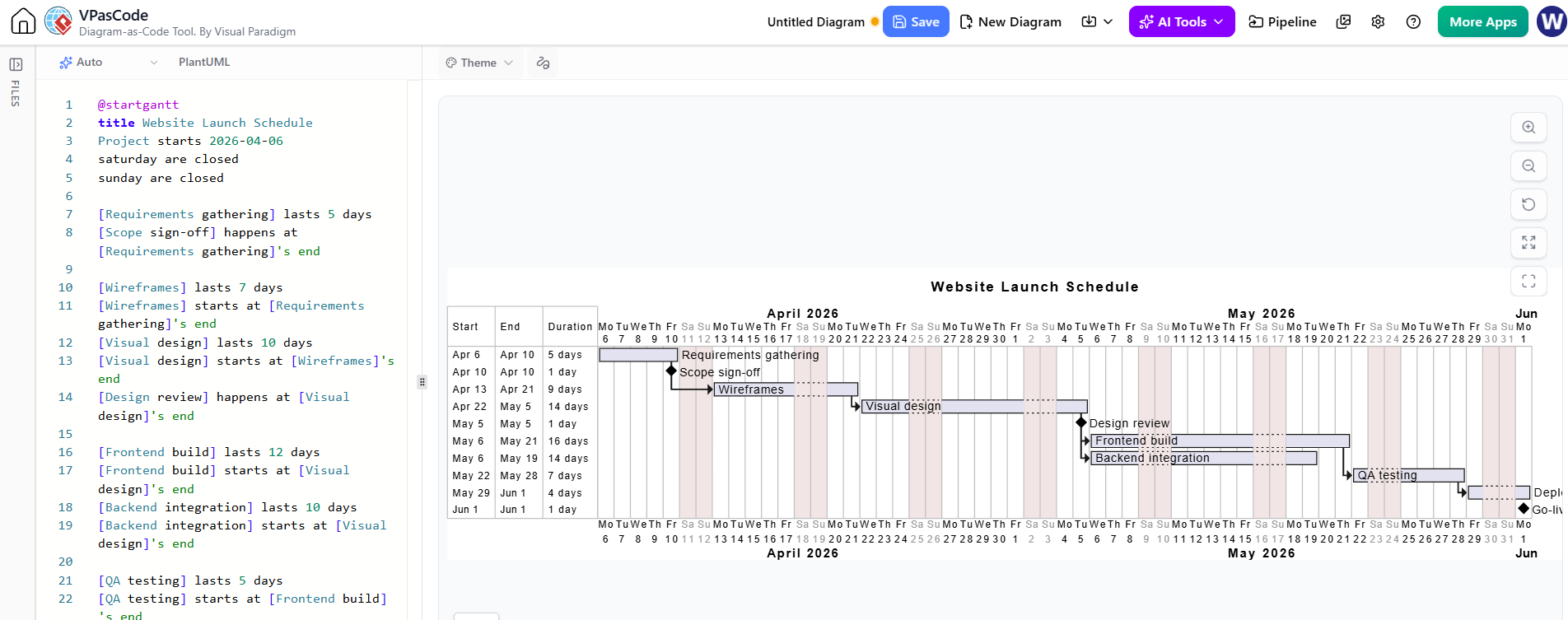
@startgantt
title Website Launch Schedule
Project starts 2026-04-06
saturday are closed
sunday are closed

[Requirements gathering] lasts 5 days
[Scope sign-off] happens at [Requirements gathering]'s end

[Wireframes] lasts 7 days
[Wireframes] starts at [Requirements gathering]'s end
[Visual design] lasts 10 days
[Visual design] starts at [Wireframes]'s end
[Design review] happens at [Visual design]'s end

[Frontend build] lasts 12 days
[Frontend build] starts at [Visual design]'s end
[Backend integration] lasts 10 days
[Backend integration] starts at [Visual design]'s end

[QA testing] lasts 5 days
[QA testing] starts at [Frontend build]'s end
[Deployment] lasts 2 days
[Deployment] starts at [QA testing]'s end
[Go-live] happens at [Deployment]'s end
@endgantt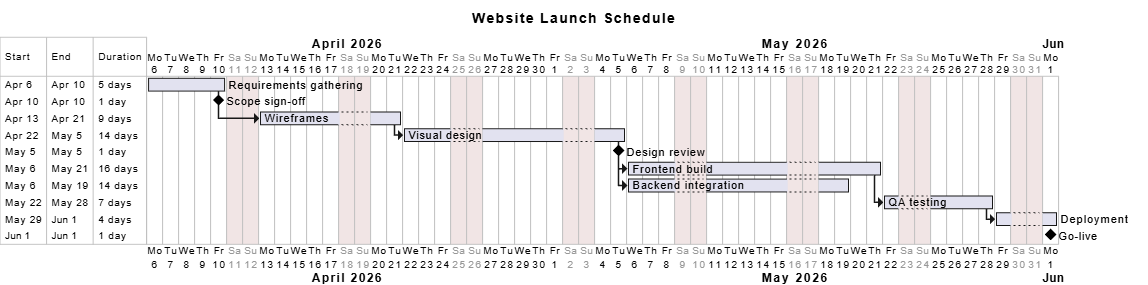
How to customize the example
To adapt this Mermaid chart, change the dateFormat if your renderer expects a different convention. Adjust durations by editing the 7d values. Add or remove dependencies by changing which task ID appears after after. Note that Mermaid task IDs must be consistent; a missing or mistyped ID will prevent the chart from rendering. To exclude weekends from duration calculations, confirm whether your specific renderer supports weekend exclusion—Mermaid’s core syntax does not automatically exclude weekends, so durations are calendar days unless your tooling handles it otherwise .
7. PlantUML Gantt Chart Example
PlantUML syntax
PlantUML uses more readable statements wrapped in @startgantt and @endgantt. A project start date anchors the timeline. Tasks are defined with [Task Name] lasts N days, and dependencies use starts at [Task]'s end. Milestones use happens at. Closed days (weekends and holidays) can be declared explicitly .
Example project schedule
The following PlantUML code represents the same website launch project:
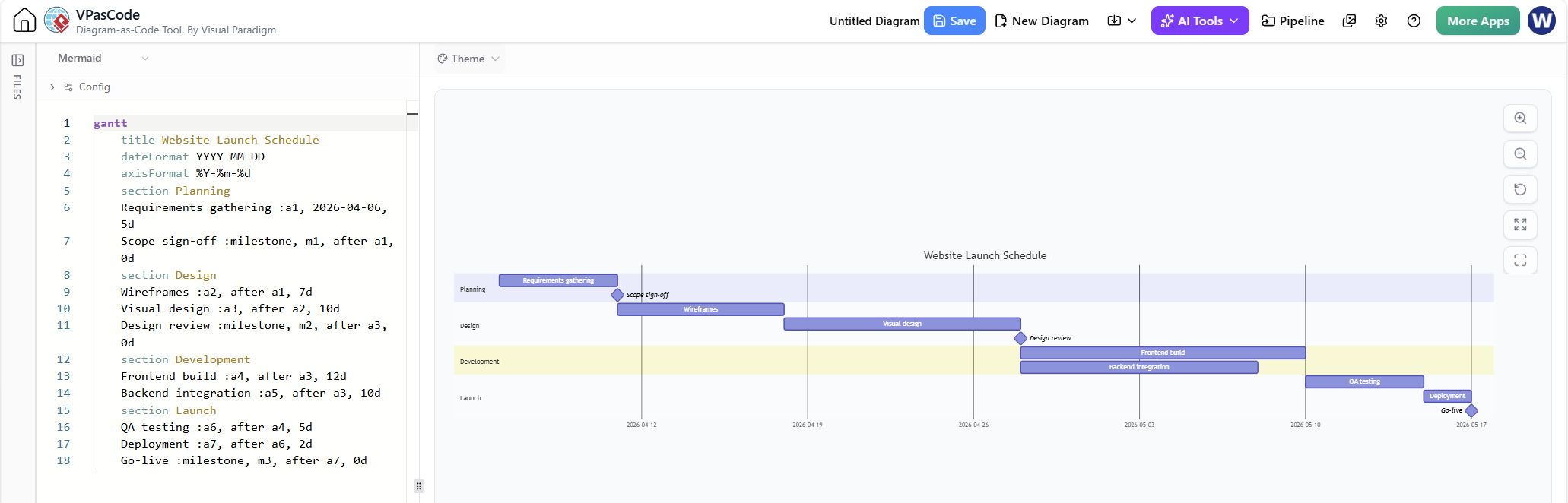
@startgantt
title Website Launch Schedule
Project starts 2026-04-06
saturday are closed
sunday are closed

[Requirements gathering] lasts 5 days
[Scope sign-off] happens at [Requirements gathering]'s end

[Wireframes] lasts 7 days
[Wireframes] starts at [Requirements gathering]'s end
[Visual design] lasts 10 days
[Visual design] starts at [Wireframes]'s end
[Design review] happens at [Visual design]'s end

[Frontend build] lasts 12 days
[Frontend build] starts at [Visual design]'s end
[Backend integration] lasts 10 days
[Backend integration] starts at [Visual design]'s end

[QA testing] lasts 5 days
[QA testing] starts at [Frontend build]'s end
[Deployment] lasts 2 days
[Deployment] starts at [QA testing]'s end
[Go-live] happens at [Deployment]'s end
@endgantt

How to customize the example
Change the Project starts date to shift the entire timeline. The saturday are closed and sunday are closed declarations cause PlantUML to skip weekends when calculating durations, which often produces different end dates than a calendar-day calculation. To add a holiday, use 2026-05-01 is closed. Task colors can be set with [Task Name] is colored in LightBlue. Dependencies can also use shorthand arrows: [Task A] -> [Task B]. Always verify that task names in dependency statements match the defined task names exactly; PlantUML does not use separate IDs, so a typo in a task name will break the dependency .
8. Mermaid vs. PlantUML: Which Should You Use?
Both languages can represent the same project schedule, but they fit different contexts. Mermaid is more compact and is natively rendered in GitHub, GitLab, Azure DevOps wikis, and many Markdown tools. If your team already documents in Markdown and wants charts that render without additional tooling, Mermaid is the pragmatic choice . Its Gantt syntax is terse, which makes it fast to write but occasionally cryptic when dependencies are complex.
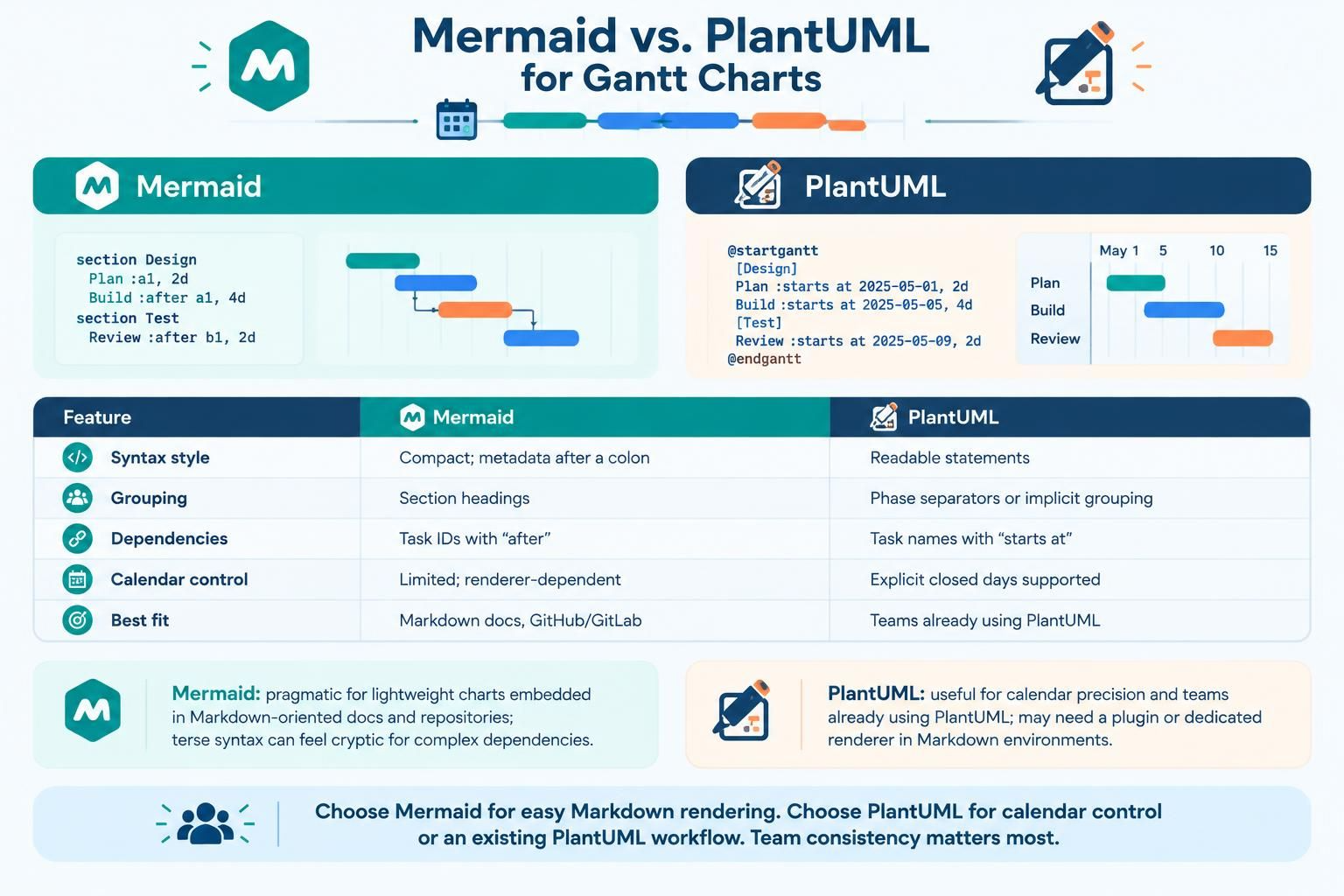
PlantUML uses more readable statements (lasts, starts at, happens at) and gives finer control over calendar behavior, such as explicitly closing weekends and holidays. It is the better fit if your team already uses PlantUML for UML diagrams or if you need precise control over working-day calculations . The tradeoff is that PlantUML is not rendered natively in as many Markdown environments as Mermaid; it often requires a plugin or a dedicated renderer.
A practical rule: choose Mermaid for lightweight project charts embedded in Markdown-oriented documentation and repositories. Choose PlantUML when you need calendar precision or when PlantUML is already part of your technical documentation stack. Consistency within a team matters more than theoretical superiority—pick one and use it consistently .
| Consideration | Mermaid | PlantUML |
|---|---|---|
| Syntax style | Compact, metadata after colon | Readable statements |
| Grouping | section headings |
Phase separators or implicit grouping |
| Dependencies | Task IDs with after |
Task names with starts at |
| Calendar control | Limited; renderer-dependent | Explicit closed days supported |
| Best fit | Markdown docs, GitHub/GitLab | Teams already using PlantUML |
9. Tips for Getting Better Results from Gantt Chat
Be specific in your first prompt. Vague descriptions produce generic schedules. Include the project goal, known phases, total duration or key deadlines, team constraints, and any dependencies you already know. The more context the AI has, the fewer refinement cycles you will need .
Ask the AI to flag assumptions. After generating a draft, prompt the AI to list the assumptions it made—about durations, resource availability, or dependency logic. This surfaces areas where the schedule may not match reality, allowing you to correct them before sharing .
Review dependencies, not just dates. A schedule with correct dates but missing logical dependencies will mislead. Check that every task that truly must wait for another has an explicit link. Ask the AI: “Identify any tasks that should have dependencies but currently don’t” .
Use working-day calculations deliberately. If your team does not work weekends, ensure your chosen syntax and renderer respect that. PlantUML handles closed days explicitly; Mermaid’s behavior depends on the renderer. An eight-day task that spans a weekend may finish sooner or later than you expect .
Iterate in small steps. Instead of asking for a complete overhaul, make one type of change at a time: first fix durations, then adjust dependencies, then refine milestones. This makes it easier to catch errors and keeps the conversation focused .
10. Conclusion
Gantt Chat with Visual Paradigm turns project scheduling from a manual drafting exercise into a conversational refinement process. You describe the plan, the AI produces a structured first draft, and you polish it through dialogue and code-level edits. The result is a Gantt chart that is not trapped in a proprietary format but exists as readable, version-controllable text that integrates with your documentation. Whether you choose Mermaid for its ubiquity in Markdown ecosystems or PlantUML for its calendar precision, the workflow remains the same: describe, review, refine, and share. The tool does not replace project management judgment—it removes the mechanical friction that keeps good schedules from being written.