

Introduction
Visual Paradigm Desktop can be the modeling center of a broader team workflow. Around it, Visual Paradigm Online (VP Online), AI tools, Pipeline, OpenDocs, and the Unified Platform can help teams move from early ideas to reviewed diagrams and documented decisions.
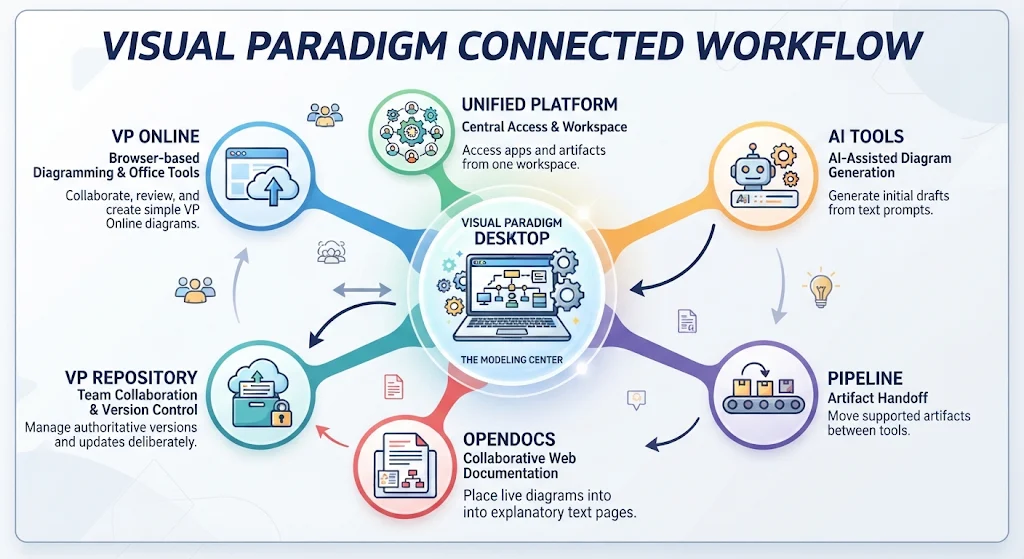
Each component has a distinct role. Desktop supports detailed modeling; online tools offer browser-based ways to create and collaborate; AI can help produce an initial draft; Pipeline provides a handoff for supported artifacts; and OpenDocs puts diagrams alongside explanatory text. The Unified Platform helps users access apps and artifacts from a central workspace. This connected workflow does not mean every tool automatically synchronizes every change, so teams should designate the authoritative version of each artifact and manage updates deliberately.
What each component contributes
-
Visual Paradigm Desktop: A workbench for building and refining structured project diagrams and models. It is a good fit when work needs detailed modeling, ongoing project maintenance, or engineering-oriented capabilities.
-
VP Online: Browser-based diagramming and other online tools for work that benefits from web access or collaboration.
-
AI tools: A way to draft diagrams or explore ideas from prompts. Review generated results for accuracy, terminology, and completeness before adopting them.
-
Pipeline: A transfer route for supported artifacts between Visual Paradigm tools, including sending Desktop diagrams to the OpenDocs Pipeline.
-
OpenDocs: A place to combine diagrams with explanatory text and project documentation.
-
Unified Platform: A central workspace for discovering apps and accessing artifacts across the ecosystem. It organizes access; it does not replace the individual tools.
A practical end-to-end workflow
1. Start with an idea or requirement
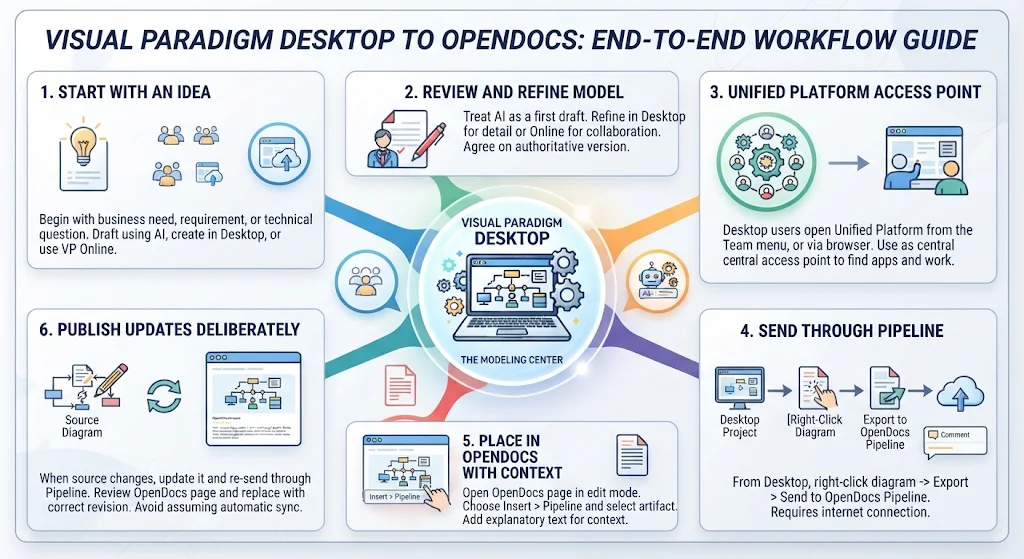
Begin with a business need, user requirement, process description, or technical question. The team can draft a diagram using an AI tool, create it directly in Desktop, or use VP Online when browser-based creation suits the task.
Keep relevant requirements, decisions, or notes with the project. That context will help reviewers understand what the diagram is intended to represent.
2. Review and refine the model
Treat AI-generated output as a first draft, not an approved design. Check that the diagram reflects the requirements, uses consistent terminology, and includes the important relationships and flows. Then refine it in Desktop when the work needs detailed modeling and continued project maintenance, or in an online tool when collaborative browser-based editing is a better fit.
Agree on which version is authoritative. Depending on the workflow, it might be maintained in a Desktop project, an online artifact, or another team-managed source. Avoid treating several exported copies as equally current.
3. Use the Unified Platform as the team’s access point
Desktop users can open the Unified Platform from Team / Unified Platform > Unified Platform. Teams can also access the platform through a browser. Use it as a starting point to find or launch relevant apps and locate work across the ecosystem. The exact apps and artifacts available depend on the user’s account and setup.
4. Send the approved diagram through Pipeline
For the Desktop-to-OpenDocs workflow:
-
Open the project and diagram in Visual Paradigm Desktop.
-
Right-click the diagram and choose Export > Send to OpenDocs Pipeline.
-
Save the project if prompted.
-
Add an optional comment that identifies the artifact’s purpose or revision.
-
Confirm the transfer.
This sends the diagram to the cloud-based Pipeline for use in OpenDocs. The transfer requires an internet connection. The menu or steps may vary by version, so teams should confirm the workflow in their installed product.
5. Place the diagram in OpenDocs with context
Open or create the relevant OpenDocs page and enter edit mode. Place the cursor where the diagram belongs, choose Insert > Pipeline, and select the artifact. Add text that explains the diagram’s purpose, scope, assumptions, and any decisions readers need to understand.
A diagram is easier to use when it appears near the text that explains it. This is especially helpful for requirements documents, architecture references, process guides, project wikis, and onboarding materials.
6. Publish updates deliberately
When the source diagram changes, update it in the tool where it is maintained and send the revised artifact through Pipeline. Then review the OpenDocs page and select or replace the embedded artifact with the appropriate revision, following the available workflow.
Do not assume that editing the Desktop diagram automatically changes every copy or document that uses it. Review the page after an update to ensure the diagram and its accompanying explanation still agree.
How the tools fit together
A typical workflow can be represented as:
AI or team input → Desktop or VP Online → Pipeline artifact → OpenDocs page → team review and sharing
The workflow can begin in Desktop without AI, or in VP Online if web-based creation is a better fit. Pipeline provides the handoff; OpenDocs presents the artifact with its written context; and the Unified Platform helps users navigate apps and work across the ecosystem. Think of this as a connected workflow with managed handoffs—not necessarily a continuous, automatic, two-way sync among every component.
Team practices that improve productivity
-
Name artifacts consistently. Include a project or feature name and a meaningful status or revision marker.
-
Use Pipeline comments. Briefly describe why an artifact was sent or what changed.
-
Assign ownership. Decide who maintains the source model and who updates the associated OpenDocs page.
-
Review before publishing. Have the people responsible for the design or process check AI-generated and manually created diagrams.
-
Keep documentation contextual. Explain the diagram’s purpose and assumptions rather than embedding it without interpretation.
-
Avoid duplicate sources of truth. Identify the maintained version and make shared documents point to the right artifact or revision.
-
Pilot before standardizing. Test the Desktop-to-Pipeline-to-OpenDocs workflow on one project, then adapt it to team needs.
-
Check access and licensing. Features can depend on the app, Desktop edition, account entitlements, or subscription status. Confirm requirements before relying on a feature for an established team process.
Conclusion
Visual Paradigm Desktop, VP Online, AI tools, Pipeline, OpenDocs, and the Unified Platform can support a connected workflow from modeling to collaboration and documentation. A practical pattern is to use AI for drafts when helpful, maintain a clearly identified source model, send reviewed artifacts through Pipeline, and place them in OpenDocs with enough explanation for readers to use them.
The productivity benefit comes from clear ownership and deliberate handoffs—not from assuming all tools synchronize automatically. When teams agree on where work lives, how revisions are published, and who reviews them, the ecosystem can make models easier to find, maintain, and understand.